Invites
The Invites page is the operator surface for onboarding Codex accounts into Pools. An invite creates a one-time URL that lets the invited account complete the hosted onboarding flow and attach the resulting upstream identity to a Pool.
Use this page when you need to answer:
- which Pool invites were created
- which account email was invited
- who created the invite
- whether email delivery was attempted
- whether the invite was accepted, expired, or revoked
- whether an active invite should be reissued or revoked
Invites are metadata-only after creation. The one-time invite URL is shown only in the create-result dialog and is not stored for later display in admin history.
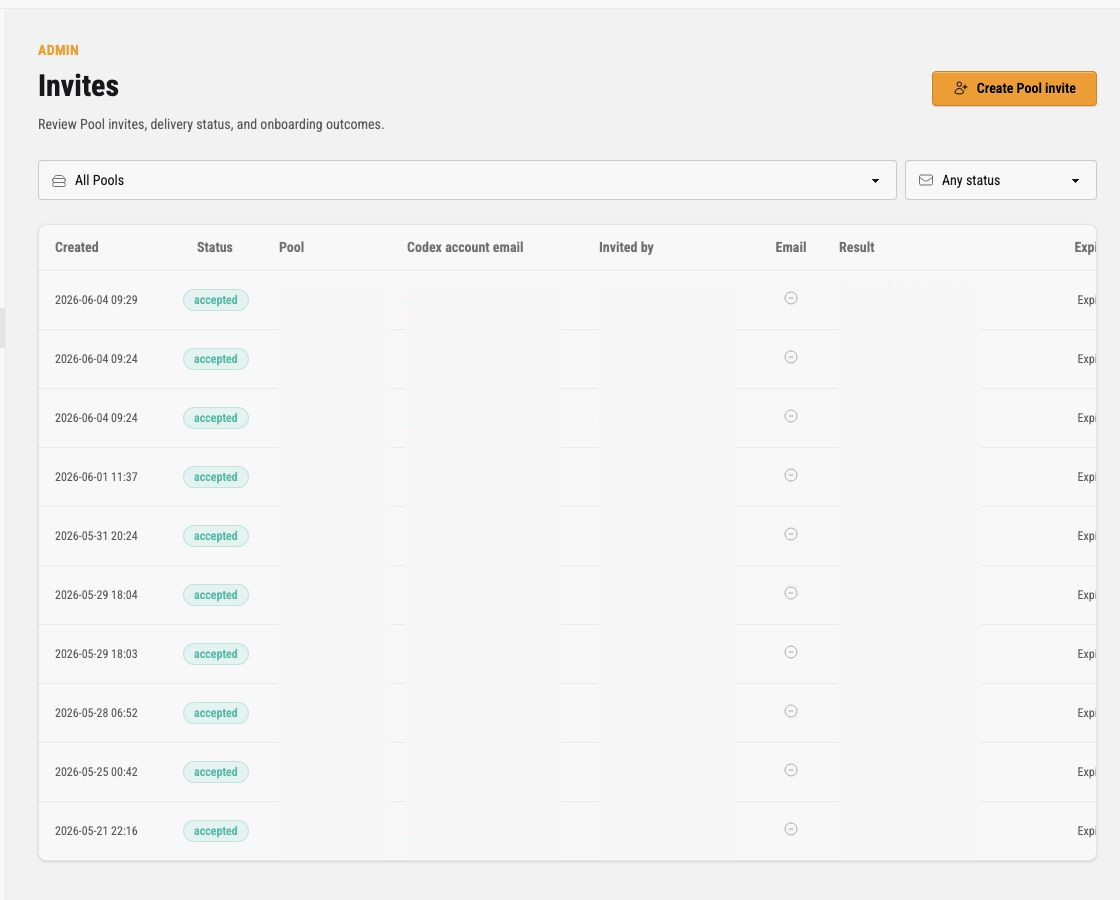
The screenshots in this guide redact live row values. The production UI shows authorized operators safe invite metadata, but public docs should not publish production emails or invite results.
Filters
Section titled “Filters”The top filters narrow the invite table.
| Filter | Meaning |
|---|---|
| Pool | Limits rows to invites for one Pool. |
| Status | Limits rows to active, accepted, expired, or revoked invites. |
Invite Table
Section titled “Invite Table”The table shows the latest matching invites.
| Column | Meaning |
|---|---|
| Created | When the invite was created. |
| Status | Current invite lifecycle state. |
| Pool | Target Pool for the onboarding flow. |
| Codex account email | Account email the invite was created for. |
| Invited by | Operator who created the invite. |
| Whether invite email delivery was recorded. | |
| Result | Acceptance, revocation, expiry, or awaiting-acceptance summary. |
| Expires | Relative expiry state. |
| Actions | Reissue and revoke actions for active invites. |
Create Pool Invite
Section titled “Create Pool Invite”Click Create Pool invite to open the invite dialog.
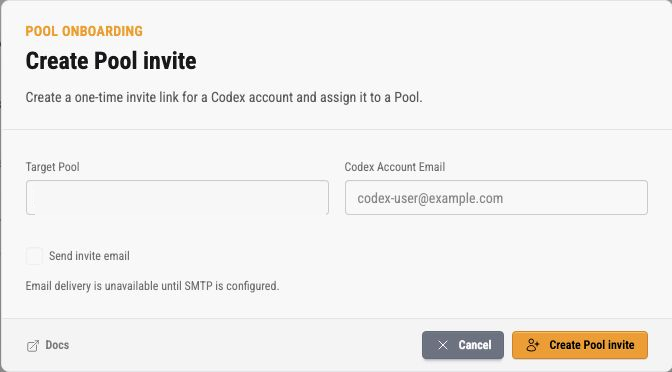
The dialog asks for:
- target Pool
- Codex account email
- whether Codex Pooler should send the invite email
The submit button stays disabled until the form is valid. When SMTP is not configured, email delivery is unavailable and the operator must share the invite URL manually.
After a valid invite is created, the result dialog shows the one-time invite URL. Copy it immediately. That URL is not shown again in the invite table or audit history.
OpenAI Device-Code Setup
Section titled “OpenAI Device-Code Setup”Hosted invite onboarding uses OpenAI’s Codex device-code authorization. This setup is only needed for invite onboarding and the OAuth device-code fallback; browser OAuth linking from /admin/upstreams does not depend on it. Before opening the invite URL, a personal ChatGPT account should have Enable device code authorization for Codex enabled in ChatGPT Settings > Security. Workspace-managed accounts may need a workspace admin to enable device-code login for Codex in workspace permissions.
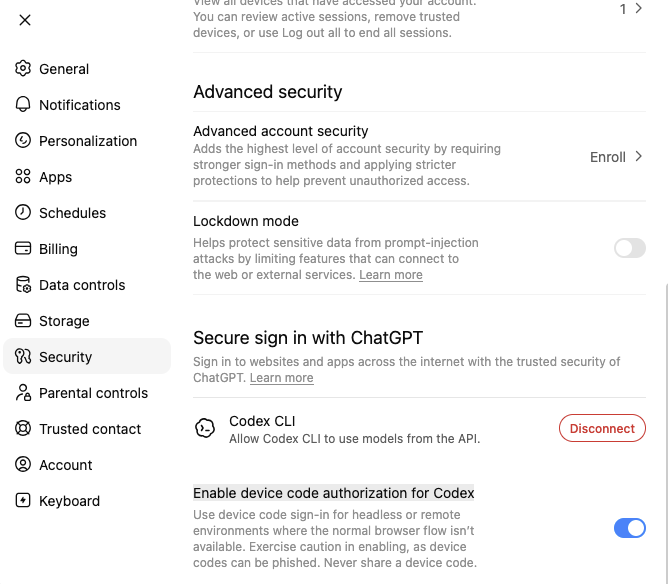
OpenAI’s Codex authentication docs describe device-code login. If device-code authorization is off, the Codex Pooler invite can still be active, but OpenAI can block the approval step and the upstream will not become ready.
Invite States
Section titled “Invite States”Invite lifecycle states are:
| State | Meaning |
|---|---|
| Active | The invite URL can still be used until it expires or is revoked. |
| Accepted | The invited account completed onboarding. |
| Expired | The invite URL is no longer usable because its expiry passed. |
| Revoked | An operator invalidated the invite URL before acceptance. |
Active Invite Actions
Section titled “Active Invite Actions”Active invites expose a dotted action menu.
| Action | What it does |
|---|---|
| Reissue | Sends the invite email again when SMTP is configured. It is disabled when email delivery is unavailable or the invite is no longer active. |
| Revoke | Opens a confirmation dialog. Confirming makes the existing invite URL stop working immediately. |
Revoking an invite does not delete existing upstream accounts. It only invalidates that invite URL.
Operational Checklist
Section titled “Operational Checklist”When onboarding is not working, check invites in this order:
- confirm the invite status is
active - confirm the invite has not expired
- confirm the target Pool is correct
- confirm the account email is the intended Codex account email
- confirm device-code login for Codex is enabled in ChatGPT Settings > Security or by the workspace admin
- confirm SMTP is configured if the operator expected email delivery
- reissue the active invite email only when email delivery is available
- create a new invite when the old invite is expired or revoked
- use Audit logs to confirm who created, accepted, revoked, or reissued the invite
If the invite was accepted but no upstream appears ready, move to the Upstreams page and inspect the account’s credential and quota state.