System jobs
The System Jobs page is the owner-facing surface for background work. It shows scheduled and on-demand maintenance jobs so owners can quickly see whether workers are queued, running, completed, retrying, or failing.
Use this page when you need to answer:
- which background workers exist
- when each worker last ran
- when scheduled workers will run next
- whether any worker currently has live targets
- whether a target needs attention after a failed job
- whether a supported worker group can be manually enqueued
- which recent job row explains a failure or retry
The page is metadata-only. It shows worker names, queue names, safe target labels, state, attempt counts, timestamps, and sanitized failure summaries. It does not show raw prompts, generated content, uploaded file contents, websocket frames, credentials, upstream secret material, provider payloads, or raw job args that contain private material.
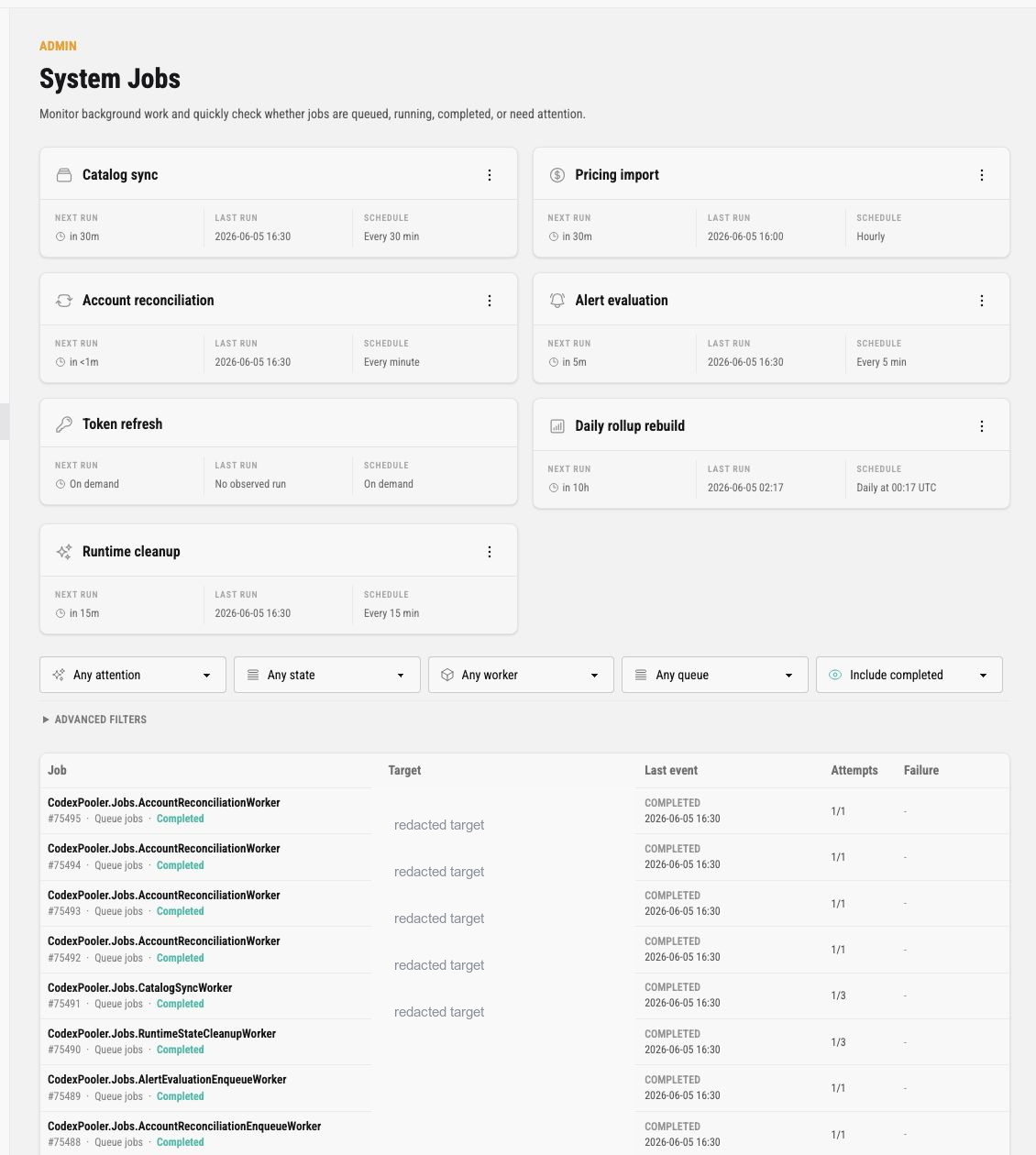
The screenshot in this guide redacts live target values from the explorer table. Authorized owners see safe operator labels in production, but public docs should not publish production account or Pool identifiers.
Worker Cards
Section titled “Worker Cards”The top grid groups related Oban workers into operator-facing cards. Each card shows the worker group name, a small icon, optional live state, optional action menu, and schedule facts.
The schedule footer has three fields:
| Field | Meaning |
|---|---|
| Next run | When the next scheduled, queued, retrying, or on-demand run is expected. Running now means a matching job is executing. |
| Last run | Most recent observed event timestamp for that worker group. |
| Schedule | Configured cadence for the worker group. On-demand workers do not run from cron. |
The current worker groups are:
| Worker group | Purpose | Cadence |
|---|---|---|
| Catalog sync | Refreshes model catalog metadata for active Pools. Successful upstream assignment edits on an active Pool enqueue an immediate asynchronous sync for that Pool so model source metadata can refresh before the next 30-minute run. Routing eligibility and in-flight work are unchanged. | Every 30 minutes, plus manual enqueue and successful active-Pool assignment edits. |
| Pricing import | Imports reporting-only pricing data. | Hourly, plus manual enqueue. |
| Account reconciliation | Checks upstream identity readiness evidence. Scheduled runs dedupe by upstream identity; manual and request-triggered runs stay assignment-specific. | Every minute, plus manual enqueue. Scheduled and request-triggered reconciliation do not run catalog sync directly. |
| Alert evaluation | Evaluates active alert rules. | Every 5 minutes, plus manual enqueue when active rules exist. |
| Token refresh | Runs scheduled recovery for recoverable upstream identities and keeps manual refresh target-specific. | Every 15 minutes for refresh_due identities and cooled-down refresh_failed identities. The card does not expose Enqueue Now because manual refresh still requires a target upstream identity. |
| Daily rollup rebuild | Rebuilds usage rollups for a specific rollup date. Each scheduled pass rebuilds the completed UTC days of the last 28 whose rollup coverage is missing or incomplete, newest first and at most four per pass: the previous day once it ends, a day whose rebuild did not run or did not finish, and a day that changed after its rebuild (a request that crossed midnight, a deleted Pool). A day already queued is not queued twice, and a pass with nothing to repair enqueues nothing. While any completed day of the seven-day window is not rebuilt, the seven-day Pool usage view computes the whole window from raw request and ledger rows: the numbers are the same, the page is slower. | Hourly at minute 17 UTC, plus manual enqueue for the previous UTC day. |
| Runtime cleanup | Cleans expired runtime state. | Every 15 minutes, plus manual enqueue. |
Worker cards only show the execution badge when a grouped worker is currently executing. Completed workers do not keep a permanent success badge in the card header, because the schedule footer already shows the last observed run.
Manual Enqueue
Section titled “Manual Enqueue”Cards that support manual work have a dotted action menu.
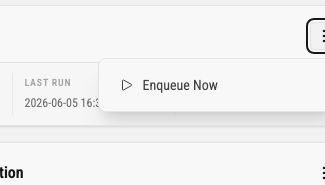
Enqueue Now requests immediate work for the whole worker group. It is available only when the worker group can be enqueued without extra target parameters.
Possible results are:
| Toast result | Meaning |
|---|---|
| Queued | One immediate job was inserted. |
| Already queued | A matching unique job already exists, so no duplicate was inserted. |
| Requested with counts | A fan-out action inserted some jobs, skipped existing ones, or partially failed. The toast summarizes the counts. |
| No active work | The worker group had nothing eligible to enqueue. For example, alert evaluation can return no work when there are no active alert rules. |
Do not expect Token refresh to have this menu. Token refresh requires a specific upstream identity, so it is launched from target-aware recovery flows instead of the global worker card.
Live and Failure Markers
Section titled “Live and Failure Markers”When a worker has active or unresolved target jobs, the card shows an activity strip between the header and schedule footer.
Activity labels are:
| Label | Meaning |
|---|---|
| Live targets | One or more target-specific jobs are currently executing. |
| Needs attention | One or more unresolved failures exist for that worker group. |
| Live targets and failures | The worker group has both active work and unresolved failed targets. |
Markers can represent accounts, direct identities, Pools, API keys, or rollup dates. If a target has a safe avatar email, the UI shows its avatar. If not, the marker uses a compact glyph from the target label. For example, a rollup target can appear as a short R plus digit glyph because the target label is based on the rollup date.
Click a Needs attention marker to open the latest failure panel for that target. The panel is hidden by default, and the selected failure is tracked in the page URL so LiveView refreshes can keep it open. The panel shows target label, worker label, failure title, failed time, attempts, and a sanitized diagnostic message. Close it from the panel x button or click the same marker again.
Filters
Section titled “Filters”The filter row narrows the explorer table.
| Filter | Meaning |
|---|---|
| Attention | Limits rows by operational attention state, such as active failures, retry pressure, stuck execution, or backlog pressure. |
| State | Limits rows by Oban state, such as executing, available, scheduled, retryable, completed, cancelled, or discarded. |
| Worker | Limits rows to one worker module. |
| Queue | Limits rows to one Oban queue. |
| Completed visibility | Hides completed rows by default. Include completed rows when you need recent successful history. |
| Target kind | Advanced filter for target type, such as Pool, account, API key, or rollup. |
| Target id | Advanced text filter for a UUID, rollup date, or blank target. |
Invalid filters are ignored with a warning so the page can recover from stale URLs or copied query strings.
Explorer Table
Section titled “Explorer Table”The explorer table shows matching job rows. Completed rows are hidden by default to keep active problems visible.
| Column | Meaning |
|---|---|
| Job | Worker module, job id, queue, and state. |
| Target | Safe target summary when a job is tied to an account, Pool, API key, upstream identity, direct identity, assignment, or rollup date. Scheduled reconciliation rows show the upstream identity target instead of repeating one row per Pool assignment. System jobs can be blank. |
| Last event | Latest relevant state timestamp for the row. |
| Attempts | Current attempt count over maximum attempts. |
| Failure | Sanitized latest failure summary, or - when no diagnostic is recorded. |
Click any row to open the detail drawer.
Detail Drawer
Section titled “Detail Drawer”The right drawer shows one selected job.
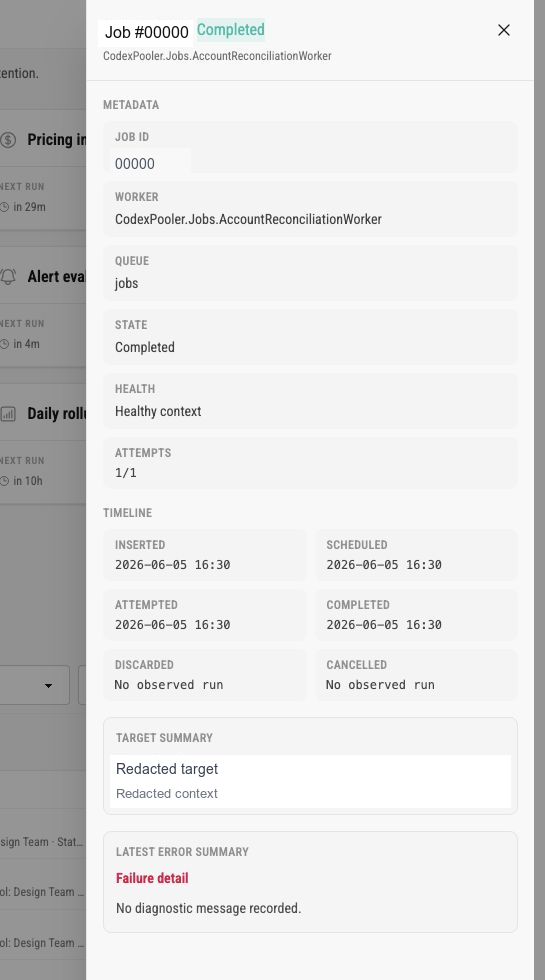
The drawer contains:
- job id, worker, queue, state, health, and attempts
- inserted, scheduled, attempted, completed, discarded, and cancelled timestamps
- safe target summary
- latest error summary
The drawer is read-only. Use it to understand what happened before deciding whether to rerun a worker group, inspect the affected Pool or upstream, or check Request logs and Audit logs around the same time.
Failures older than a day
Section titled “Failures older than a day”Finished job rows, failed and discarded ones included, are pruned after one day, so this page cannot show an older failure. Every job that fails or is discarded also writes one warning line on the node that ran it, for example:
[warning] oban job failed worker=CodexPooler.Jobs.AccountReconciliationWorker queue=jobs job_id=4711 attempt=1 max_attempts=3 kind=error error=Oban.PerformError reason=upstream_unavailable duration_ms=812oban job failed means Oban will retry the job; oban job discarded means it will not, either because the last attempt failed or because the worker discarded it. error is the class of the failure, and reason appears only when the worker returned a short identifier. The line never carries job arguments, error messages, returned text, or stack traces. Keep these lines in your log store for as long as you want to be able to explain a missed job. Job failures are not exported as a metric: jobs run on the worker role, and on a deployment with separate roles only the app role runs the metrics reporter.
Operational Checklist
Section titled “Operational Checklist”When background work looks unhealthy, check jobs in this order:
- scan worker cards for
Live targetsorNeeds attention - click a needs-attention marker when present
- use the explorer table with completed rows hidden first
- filter by state or worker if the table has too many rows
- open the strongest row in the detail drawer
- compare target summary with the relevant Pool, Upstream, API key, or Alert page
- use manual enqueue only when the worker group supports targetless work
- if manual enqueue reports no active work, check whether the source objects exist and are active
- compare timestamps with Request logs and Audit logs when the job was triggered by operator or runtime activity
System jobs are status and recovery evidence. They are not a substitute for product-specific pages: Pools explain routing boundaries, Upstreams explain account readiness, API keys explain client policy, Request logs explain runtime symptoms, and Audit logs explain administrative changes.