Cursor on Codex Pooler
Use Cursor’s OpenAI API key settings to connect an explicit model to Codex
Pooler’s narrow OpenAI-compatible /v1 surface.
Before you start
Section titled “Before you start”- An active Cursor Pro or higher subscription. Cursor staff confirms that custom BYOK requires a paid plan, including Ask mode.
- A public HTTPS Codex Pooler endpoint reachable from Cursor’s servers.
- A Pool API key permitted to use the selected model.
Your Pool API key passes through Cursor’s backend with BYOK requests. See Cursor’s API key documentation for its handling of provider credentials.
Configure the connection
Section titled “Configure the connection”Open Cursor Settings → Models → API Keys and configure:
| Setting | Value |
|---|---|
| OpenAI API key | Your Pool API key |
| Use OpenAI API key | On |
| Override OpenAI Base URL | On |
| OpenAI base URL | https://codex-pooler.example.com/v1 |
| Model | gpt-5.6-luna, or another exact model ID exposed by your Pool |
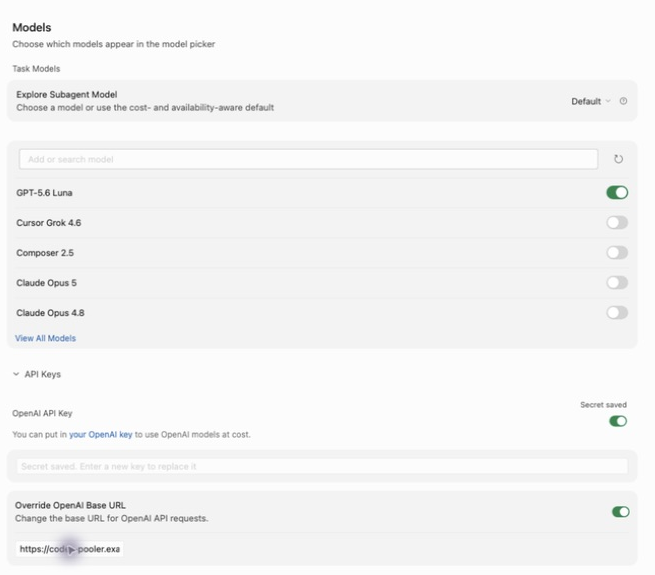
The key field is write-only: Secret saved can appear while the field looks empty. Saving a key and enabling Use OpenAI API key are separate actions. Check both switches after restarting or changing settings.
Keep the base URL at /v1; do not append /responses or /chat/completions.
Start a new chat, turn Auto off, and select the explicit model.
Choose a model
Section titled “Choose a model”Cursor’s model list is not an import of the Pooler’s /v1/models catalog.
Refreshing the list retrieves Cursor’s own catalog. Verify model availability
against your Pool separately.
If Cursor already recognizes an ID, select its existing entry. Disabling other models changes the picker; it does not force Auto to use the last enabled model or your gateway. An Auto answer is not evidence of Pooler use.
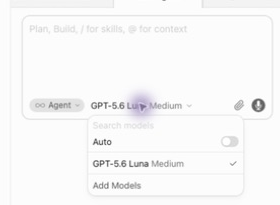
Keep the exact model ID for initial verification. A prefix such as
pooler/ changes the identifier and may also change Cursor’s request
construction; it is not merely a display label.
Verify the connection
Section titled “Verify the connection”Send a short request with the explicit model selected. In Codex Pooler’s request logs, verify the time, API key, requested model, final status, and upstream attempt. Then test a tool call and its continuation in a disposable project before relying on Agent for edits.
A rejected input can fail before accounting admission and therefore have no
request row. Check the HTTP ingress log for the request path, status and
Cursor/1.0 user agent in that case. Do not capture raw prompts or credentials.
Troubleshooting
Section titled “Troubleshooting”| Symptom | What to check |
|---|---|
| Named models unavailable | Confirm Cursor recognizes your active paid subscription. A similar erroneous gate on Pro has also been reported. |
| Access to private networks is forbidden | Use a publicly reachable HTTPS endpoint instead of localhost or a private address. |
| Model name is not valid | Check the API key switch, exact model ID, Pool permissions, and any team BYOK policy. Start a new chat after enabling the key. |
| Unsupported parameter | Report a bug with your Cursor and Codex Pooler versions, selected model, parameter name, and sanitized error code. Do not include API keys, prompts, or raw request bodies. |
| Auto answers but Pooler has no request | Select the explicit model. Auto can use Cursor’s own routing. |
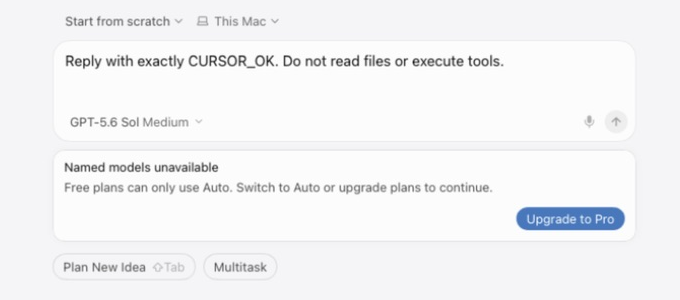
Enabling BYOK does not remove the paid-plan requirement for named models.
Compatibility notes
Section titled “Compatibility notes”This guide covers Cursor desktop with an explicit model and a Pool API key. It does not cover Auto, Tab completion, Cloud Agents, or the separate Cursor Agent CLI.
The cursor terminal command opens the desktop editor; it does not provide
a separate connection to Codex Pooler.